

Before you download anything, it helps to understand what you’re installing and how to reduce risk on Android and Windows setups. For many users, a smooth HappyMod install begins with verifying the download source and your device settings.
What to Know First
- Security matters: third-party APKs can be repackaged, so you should verify the origin and scan files.
- Permissions: avoid apps that ask for unrelated access (SMS, Accessibility, device admin) without a clear reason.
- Legality and fairness: mods may violate game terms or copyrights; use content you’re allowed to use.
Tip: If an APK download page feels “pushy” (pop-ups, forced redirects, countdown tricks), treat it as a red flag and back out.
Checklist Before Installing
If you decide to install HappyMod, do it only from the developer’s official page and scan the file before opening it.
- Update Android (or your emulator) to the latest available version.
- Enable Google Play Protect (if you use Google services) and run a quick malware scan.
- Make sure you have enough storage, and close apps to prevent installation errors.
Android Installation Steps
- Download the APK from our fan website and avoid “bundle” installers.
- Check the file: confirm the filename looks consistent, and scan it with your mobile security app.
- Allow installation from unknown sources (when needed): on modern Android versions, this is set per-app (for example, your browser or file manager).
- Open the APK: follow on-screen prompts, and decline optional add-ons.
- Review permissions after install: go to Settings → Apps → Permissions and remove anything you don’t want.
During a HappyMod app install, take a moment to review requested permissions and decline anything unnecessary.
First Launch: What to Check
- Confirm the app opens normally without forcing additional “optimizer” downloads.
- Look for a clear version number and update notes.
- Use the built-in search to locate apps, but prefer official stores for anything you’ve paid for previously.
After launch, the HappyMod installer should open to a catalog view, where you can check version notes and user feedback.
Installing on Windows (Using an Emulator)
Most Windows PCs can’t run Android APKs directly, so the common path is to use an emulator and keep it updated like any other software. A HappyMod install on PC is typically done through an Android emulator rather than a native Windows package.
- Choose an emulator: pick a reputable option, download it from our fan website, and complete setup.
- Harden your setup: turn on antivirus, keep Windows updated, and avoid emulator “addon stores” you don’t recognize.
- Transfer the APK: use the emulator’s import feature or drag-and-drop if supported.
- Install inside Android: open the APK in the emulator and complete the prompts.
To install HappyMod on PC, you’ll usually import the APK into the emulator and complete the prompts inside Android.
Common Problems and Fixes
| Issue | Likely Cause | What to Do |
|---|---|---|
| “App not installed” error | Conflicting version, corrupted file, or blocked install | Delete the APK, re-download from a trusted source, uninstall conflicting versions, then try again. |
| Crashes on launch | Incompatible Android version or missing components | Update Android/emulator, clear app cache, and restart the device or emulator. |
| Too many ads or redirects | Unofficial build or bundled installer | Uninstall immediately, run a scan, and reinstall only from official sources. |
| Emulator feels slow | Low RAM/CPU allocation or virtualization disabled | Enable virtualization in BIOS/UEFI, increase emulator resources, and close heavy apps. |
Safety Red Flags to Avoid
- Websites that demand a “download manager” or multiple extra apps first.
- APKs that request device admin, Accessibility access, or SMS permissions without a clear feature reason.
- Install pages that mimic system alerts or force notifications to proceed.
Because the web is full of clones, avoid any banner claiming a HappyMod for free install that asks for surveys or extra launchers.
FAQ
- Is it safe to use unknown-source APKs? It can be safe if you verify the source, scan the file, and keep permissions minimal, but there’s always more risk than official stores.
- Can I run it without an emulator on Windows? In most cases, Windows needs an Android layer, and that’s why emulators are commonly used for this category of apps.
- What’s the fastest way to get started? If you’re in a hurry, start with a reputable emulator, keep your security tools enabled, and proceed carefully.
- What wording should I look for in Windows tutorials? You’ll often see guides that say install HappyMod on PC, and they usually mean “inside an emulator environment.”
- Can I do this directly on my computer? You may also see the phrase HappyMod install on PC in articles, which typically refers to an emulator-based setup rather than a native installer.
Final Notes
Take your time, prioritize trusted sources, and keep your device protected with updates and scans. If you run into errors, re-check the APK source, confirm compatibility, and reduce permissions to the minimum required.


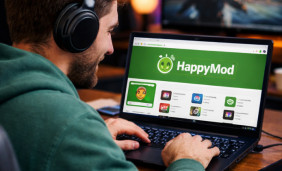 HappyMod APK Guide: What It Is & How It Works
 HappyMod Installation Guide: Security Checklist, Steps, and Common Fixes
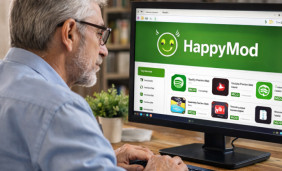 HappyMod for iOS: What’s Possible and What’s Not for iPhone Users
 A Practical Guide to Using HappyMod on PC
 Helpful Tips for HappyMod Users
 Interesting Facts About HappyMod App