
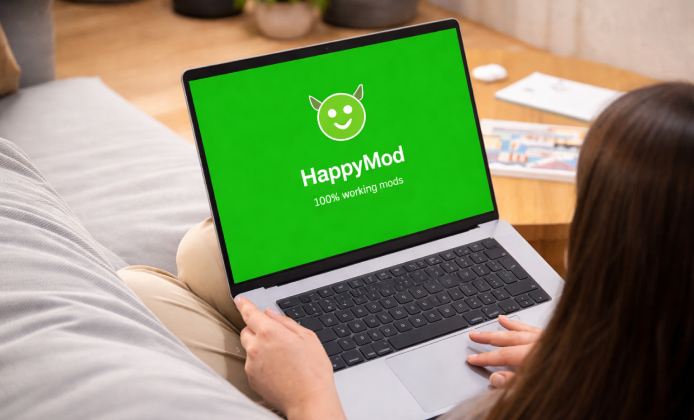
HappyMod is known as a community-driven catalog of modified Android apps, but many people prefer the comfort of a bigger screen, a keyboard, and a stable desktop connection. If you want to try it on a PC, the safest approach is to treat it like any other third-party Android app: be cautious, verify what you install, and keep your system protected. Before you start, remember that modded apps can violate app terms, break multiplayer fairness, or include risky changes. Use mods responsibly, avoid anything that impacts other players, and don’t install content that infringes copyrights or bypasses paid features you don’t own.
What You Need Before Installing
- An Android emulator (for example: BlueStacks, LDPlayer, Nox, or GameLoop).
- Windows security basics: updates enabled, antivirus active, and SmartScreen on.
- A separate Google account for testing apps (recommended).
- A habit of reading permissions and checking file reputations.
For a smooth first run, many users try, HappyMod on PC, inside an emulator profile created specifically for testing.
Choosing an Emulator That Fits Your Setup
Emulators vary in performance, ad load, and compatibility. If you’re on an older laptop, pick something lightweight; if you’re gaming, prioritize graphics options and keymapping.
| Emulator focus | Best for | What to check |
|---|---|---|
| Gaming performance | High FPS, keymapping | GPU mode, virtualization, RAM allocation |
| Lightweight use | Older PCs, simple apps | Background services, ads, startup impact |
| Compatibility | Wider app support | Android version, Play Services stability |
When planning your setup, it helps to compare options because, HappyMod download for PC, may behave differently depending on the emulator’s Android version.
Step-by-Step Installation Workflow
- Enable virtualization in BIOS/UEFI if your emulator recommends it (Intel VT-x / AMD-V).
- Install your emulator from its official website and complete the initial setup.
- Create a fresh emulator instance (separate profile) for testing third-party apps.
- Import the APK into the emulator using its “Install APK” feature.
- Open the app, review permissions, and avoid granting access you don’t need.
On modern systems, users often prefer, HappyMod on PC with Windows 10, because driver support and virtualization settings are usually straightforward.
Safe Sourcing and File Checks
Third-party APKs can be repackaged, so treat every file like an unknown download. Stick to reputable sources, scan files with antivirus, and consider using a multi-engine scanner before importing anything into an emulator. A good rule: if an APK asks for permissions unrelated to its purpose, don’t install it especially when it comes from unofficial mirrors.
If you’re comparing mirrors, make your decision carefully because, HappyMod for PC download, should come from a source that clearly explains version history and checksums.
How to Install an Apk Into the Emulator Correctly
Most emulators support drag-and-drop installation, but the most reliable method is the built-in APK installer button. If the installation fails, check whether the emulator’s Android version is compatible with the app you’re trying to run.
To avoid confusion during setup, keep one clear path in mind: download HappyMod for PC, then immediately scan the file before importing it into the emulator.
Understanding Versions, Updates, and Compatibility
Not all mods stay stable across updates. A mod may work perfectly today and crash tomorrow after a base app update. If you rely on a specific feature, keep notes about what version worked best in your emulator instance.
For users who prefer a single package approach, the phrase, HappyMod APK download for PC, typically refers to importing the Android installer into an emulator rather than installing a native Windows app.
In practice, the experience you get from, HappyMod PC version, depends on emulator settings such as RAM, CPU cores, and graphics renderer.
Tips for Smoother Performance
- Allocate enough RAM (but don’t starve Windows).
- Switch renderer modes (DirectX/OpenGL) if you see visual glitches.
- Disable unnecessary emulator ads or background processes if available.
- Keep GPU drivers updated.
When troubleshooting installation issues, remember that, HappyMod app download for PC, can fail if the emulator lacks Google Play Services or has an outdated WebView component.
Common Problems and Quick Fixes
- App won’t open: try a different Android version instance (Android 9 vs 11), or clear app data.
- Download buttons do nothing: check emulator network settings and DNS, then reboot the instance.
- “Parse error” on install: the APK may be corrupted or incompatible; re-download from a safer source.
- Laggy UI: enable virtualization, reduce emulator resolution, and close heavy background apps.
If your goal is testing on a desktop workflow, you can treat, HappyMod on computer, like a sandboxed environment by using a separate emulator profile and avoiding personal accounts. For a cleaner setup experience, organize your files so that, HappyMod download for computer, is stored in a dedicated folder you regularly scan and clean.
When you need to reinstall or switch emulators, keep your process consistent because, download HappyMod for computer, is safest when followed immediately by verification and a fresh emulator import.
Final Checklist
- Use our fan website.
- Scan APKs before installing.
- Grant minimal permissions.
- Keep testing separate from personal accounts.
- Respect app licenses, creators, and community rules.
With the right precautions, running HappyMod through an emulator can be a convenient way to explore Android app behavior on a desktop while keeping your primary system safer.


 HappyMod APK Guide: What It Is & How It Works
 HappyMod Installation Guide: Security Checklist, Steps, and Common Fixes
 HappyMod for iOS: What’s Possible and What’s Not for iPhone Users
 A Practical Guide to Using HappyMod on PC
 Helpful Tips for HappyMod Users
 Interesting Facts About HappyMod App